Formlabs Logo

在 PreForm 中处理项目

在 PreForm 中处理项目

从 3.62.0 版本开始,PreForm 支持项目功能,您可以在不同的打印机和材料之间设置构建,从新的项目面板切换,并在项目计划变化时自由移动部件。
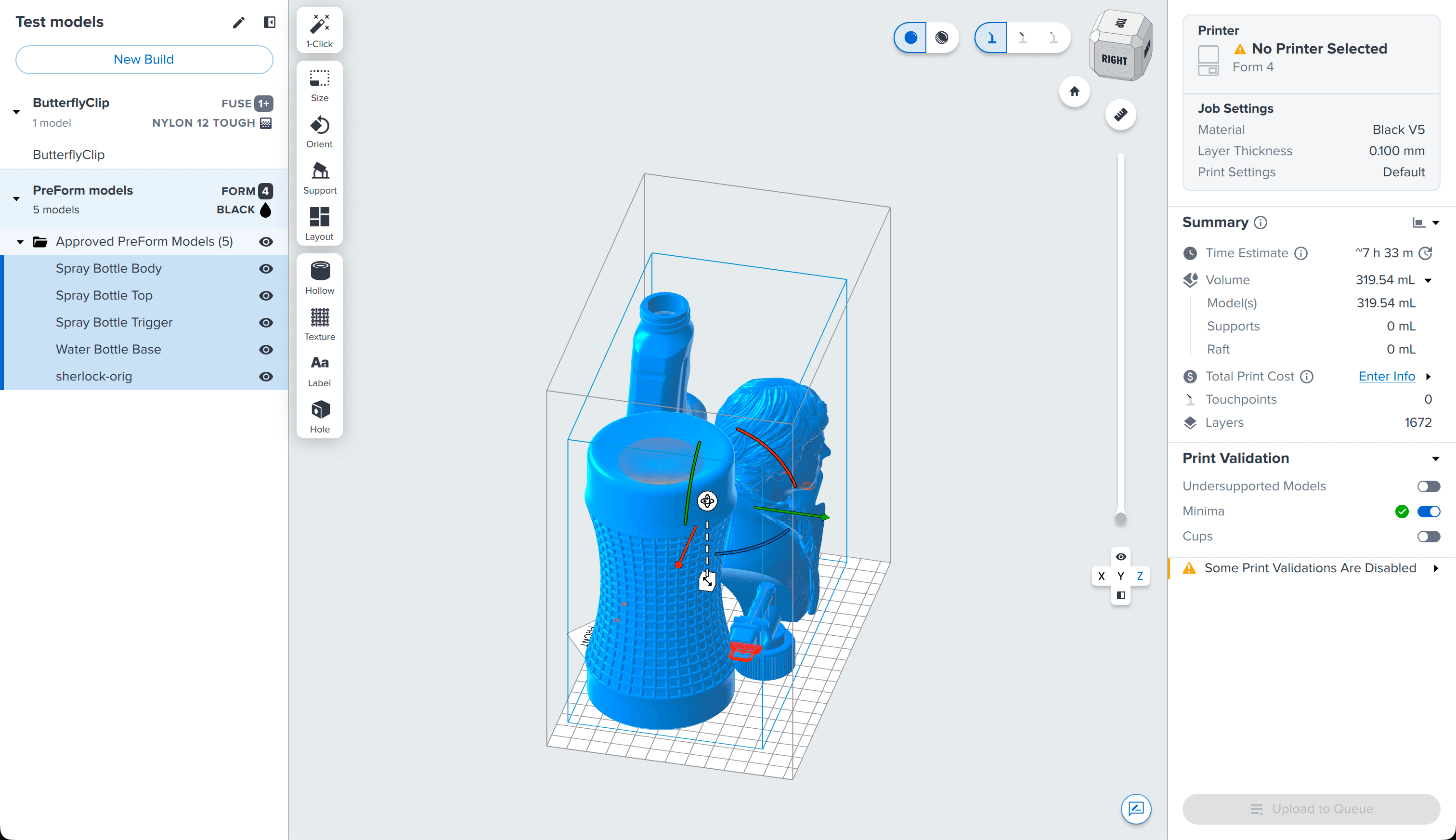
PreForm 3.62.0 中的项目示例

在项目中创建新构建

项目支持您在单个 FORM 文件中管理多个构建,并可任意组合打印机类型和材料。在项目中创建新构建的方法有多种:

  • Click New Build at the top of the Project panel.
    • The default build in a file is given the same name as the project itself. A new project is named Untitled Project, so the default build is also named Untitled Project.
    • The new build appears at the bottom of the project list with the same printer and material settings as the selected build.
    • If this is the first new build you are adding to the project and you have not renamed the default build, the default build is renamed to <Project Name> 1, where <Project Name> is the name of the overall project.
    • The new build is named <Project Name> #, where <Project Name> is the name of the overall project and # is the highest build number not yet used in the project.
    在 Project(项目) 面板中右键单击构建。
  • 系统将显示上下文菜单。单击Duplicate(复制)。
    • 新构建将显示在项目列表的底部,其名称、打印机、材料和模型列表与所选构建相同。
  • Select one or more models in the 3D scene or the build list under a project in the Project panel. Right-click on the models. A context menu appears. Click Send to Build > Create New Build.
    • The new build appears at the bottom of the project list with the same printer and material settings as the build with the selected parts.
    • The new build is named <Project Name> #, where <Project Name> is the name of the overall project and # is the highest build number not yet used in the project.

编辑构建的打印机和材料设置

项目中的每个构建都可以设置自己的打印机和材料设置。

更改成型的任务设置:
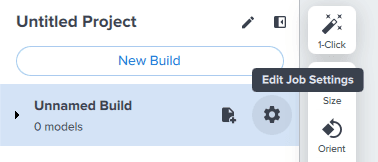
    在 Project(项目) 面板中将鼠标悬停在项目上。
  1. 将显示 Add Models(添加模型) 和 Edit Job Settings(编辑任务设置) 按钮。
  2. 单击标有 Edit Job Settings(编辑任务设置)的齿轮图标。随即显示 Job Setup(任务设置)界面。
  3. 选择打印机、材料、层厚和打印设置。
  4. 单击 Apply(应用)。所选任务设置将保存到当前构建中。
从 Project(项目)面板编辑任务设置

命名构建或项目

为项目或项目中的单个构建命名,以便识别和组织。

命名项目:

    在 Project(项目) 面板顶部的铅笔图标旁单击项目名称。
  1. 项目名称将变为可编辑字段。
      新项目的默认名称为
    • Untitled Project(无标题项目)。
    • 如果打开的 FORM 文件只有一个构建(例如早于 PreForm 3.62.0 和项目的文件),则项目名称与该 FORM 文件相同。
  2. 输入项目的名称。
  3. 在 PreForm 中单击项目名称以外的区域或按 Enter 键。项目名称随即更新。

To name an individual build within a project:

  1. Double-click the name of the build you want to edit within the Project panel. The build name becomes an editable field.
    • The default name of a new build is <Project Name> #, where <Project Name> is the name of the overall project and # is the highest build number not yet used in the project.
    • If you add one or more models to a build, the build is given the same name as those models.
  2. Enter your desired name for the build.
  3. Press Enter. The build name is updated.

在项目中将模型添加到构建中

打开模型会将其添加到当前活动构建中。您还可以将模型添加到项目中的特定构建中,只需将鼠标悬停在 Project(项目) 面板中的构建上,然后单击出现的 Add Models(添加模型) 按钮即可。

在不同构建之间移动模型

项目支持在不同构建之间移动模型,例如,如果模型无法放置在一个构建平台上,或者需要在打印机组中的打印机之间分配打印任务。

将模型移至其他构建:

    在 3D 场景或 Project(项目) 面板中项目下的模型列表中选择一个或多个模型。
  1. 右键单击模型。系统将显示上下文菜单。
  2. 将鼠标悬停在 Send to Build(发送至构建)上。随即显示包含多个选项的面板。
  3. 选择模型的目标构建。
    • 单击特定构建的名称,将模型发送到该构建。
      • 如果将受支持的 SLA 模型移至新构建或使用相同打印机和材料设置的构建中,则会保留其支撑。如果将其移至具有不同打印机或材料设置的构建中,则支撑结构将被删除。
    • 单击 Create New Build(创建新构建),将构建添加到包含所选模型的项目中。
      • 新构建将显示在项目列表底部,其打印机和材料设置与当前活动构建相同。
      • 新构建将以用于创建它的模型名称命名。

删除项目中的构建

删除项目中的构建:

    在 Project(项目) 面板中右键单击构建。
  1. 系统将显示上下文菜单。
  2. 单击 Delete(删除)。随即显示确认窗口。
  3. 单击 Yes, Delete Permanently(是,永久删除) 进行确认。构建及其模型将从项目中删除。

注:

    在 Project(项目) 面板中单击构建名称并按 Delete(删除)并不会删除构建,而是会删除构建中的模型。
  • 删除项目中的最后一个构建后,将留下一个空构建,其名称与整个项目相同,打印机和材料设置与项目中最后一个被删除的构建相同。
