白皮书
Formlabs Logo

模型分组

模型分组

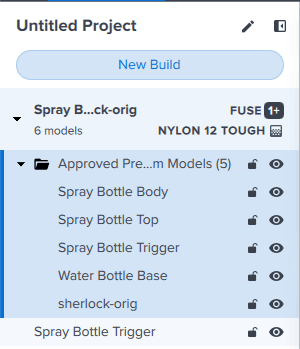
从 PreForm 3.43.0 版(用于 SLS 打印机)和 PreForm 3.53.0 版(用于 SLA 打印机)开始,您可以通过模型分组更好地管理多组模型。群组模型还可以执行与多选模型相同的功能,如复制模型、删除已选模型或更改其可见性。

在处理需要可追溯性或需要单独管理的多组模型(如服务机构订单或牙科打印)时,模型分组设置尤其有用。

创建模型群组

Importing multiple models

When importing a folder of models, the files are automatically grouped together and organized in the Model List. The group is given the same name as the imported folder.

替换文字

Splitting a multi-body model

If you import a multi-part or multi-body model, you can separate those bodies into discrete models in PreForm. When you do, the separated models are added to a model group:

  1. Import a multi-part or multi-body model.
  2. Right-click on the model in the 3D scene or in the Model List. A context menu appears with a list of options.
  3. Select Separate Bodies. The model is separated into its constituent parts, each of which is added to a new group in the Model List. The group is given the same name as the original model.
    • If you had previously added supports to the multi-body model, the supports are removed.
    • If the multi-body model was previously oriented such that some of the bodies were positioned above the build platform or print bed, the separated models are lowered such that they are all in contact with the build platform or print bed.
Splitting a multi-body model

Selecting models in the Model List

You can also group models by selecting them in the Model List.

  1. Select the models you wish to group and right-click. A context menu appears with a list of options.
  2. Select Group Models. The models are grouped and given the name "Group X" where X starts at 1 and increments with each group. Double-click the folder’s name to rename the folder.
替换文字

分离模型

可以在构建中混合使用分组和取消分组模型。要分离模型,请右键单击组名或组内的任意模型,然后选择 Ungroup Models(取消模型分组)。模型将与文件夹分离,并单独列出。