白皮书
Formlabs Logo

Printing with Open Material Mode (SLA)

Printing with Open Material Mode (SLA)

With Open Material Mode, you can print with any type of 405 nm photopolymer resin on Formlabs SLA printers. Open Material Mode is available for a one-time lifetime fee per printer.

Follow the steps in this article to print with Open Material Mode on your Formlabs SLA printer.

要求

Note:

Open Material Mode jobs can only be set up in the Standard Workspace.

创建与 Open Material Mode 搭配使用的打印设置

要使用 Open Material Mode 进行打印,首先需要使用 PreForm 打印设置编辑器创建打印设置:
  1. 打开 PreForm。
  2. 单击 Edit(编辑)> Print Settings Editor(打印设置编辑器)。随即显示 Print Settings Editor(打印设置编辑器)窗口,其中显示现有自定义打印设置的列表。
  3. 单击 New Print Setting(新建打印设置)。随即显示 Formlabs 打印设置列表。
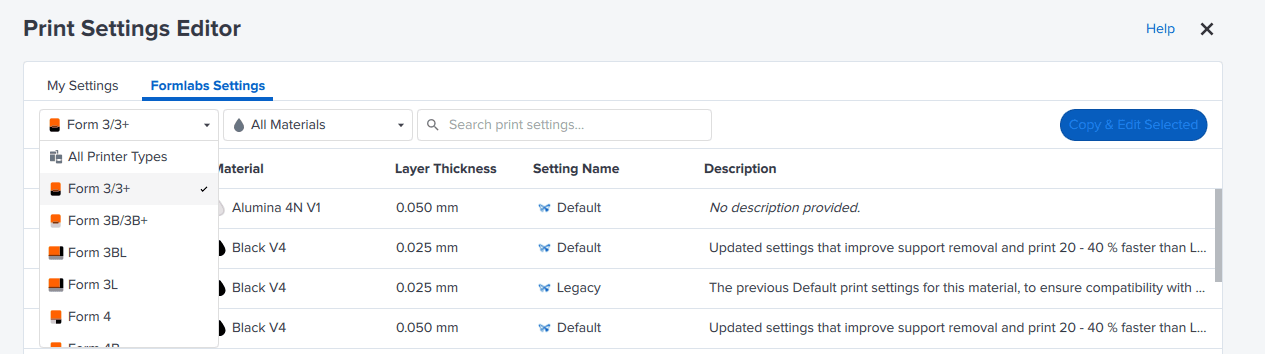
  4. 在打印机类型过滤器下拉菜单中选择打印机类型。
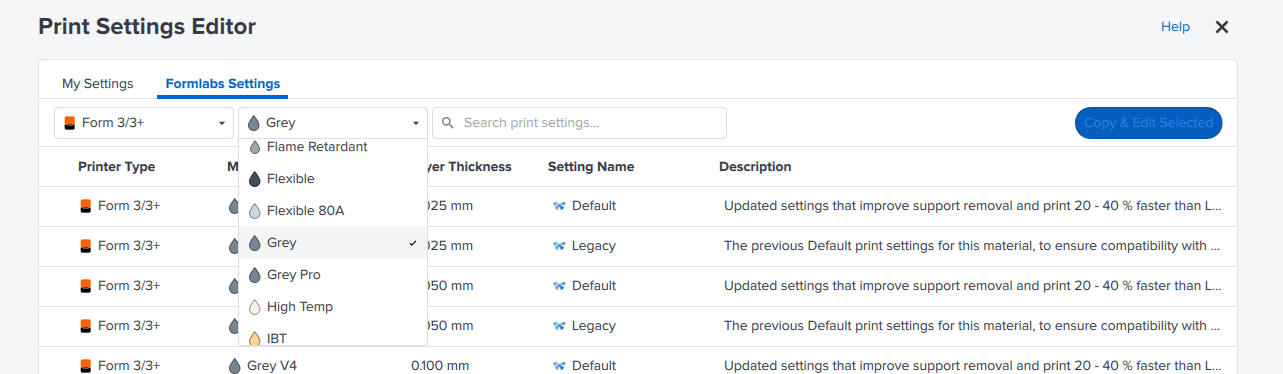
PreForm 打印设置编辑器中的打印机过滤器
  1. Pick a Formlabs material that has the closest properties to the resin you want to print with. A list of validated print settings for that Formlabs material appears.
PreForm 打印设置编辑器中的材料过滤器
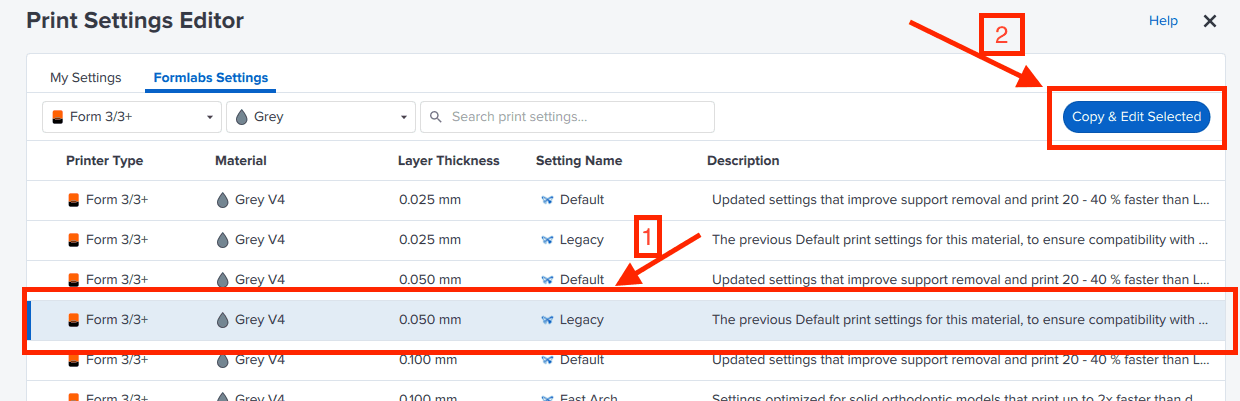
  1. 选择打印设置。单击 Copy & Edit Selected(复制并编辑选择内容)。随即显示新打印设置的界面。
在 PreForm 打印设置编辑器中创建自定义打印设置
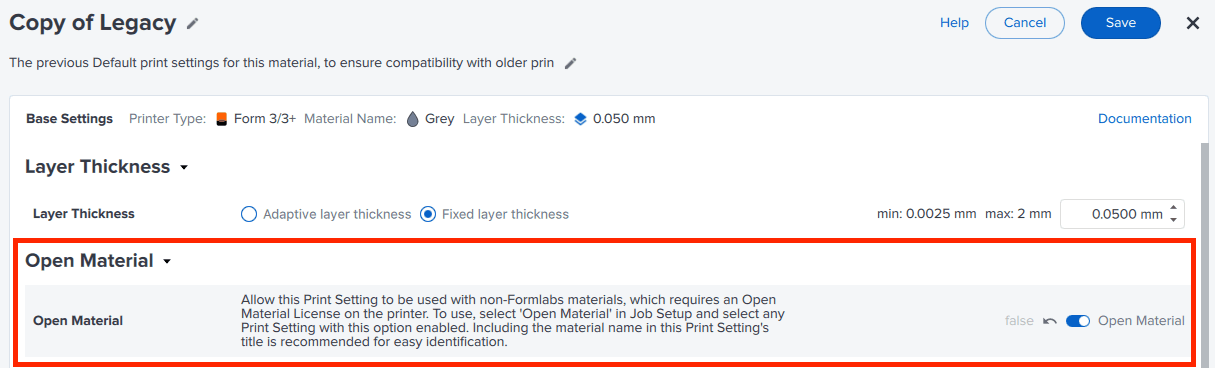
  1. Open Material 切换为 ON。切换按钮变为蓝色。
PreForm 打印设置编辑器中的 Open Material 切换按钮
  1. Edit any other parameters you want to modify.
  2. Give the setting a custom name, edit print parameters, and then click Save. Your custom print setting is saved and the My Settings list appears.

The print setting is now available to set up jobs using any 405 nm photopolymer resin.

使用自定义打印设置以设置打印

创建自定义 Open Material 打印设置后,即可将其用于切片并将任务发送到已激活 Open Material Mode 的打印机。

  1. 如果 Print Settings Editor(打印设置编辑器)窗口仍打开,单击 X 关闭该窗口。随即显示主要 PreForm 工作区。
  2. Job Setup(任务设置)面板中,单击 Edit Job Setup(编辑任务设置)。随即显示 Job Setup(任务设置)界面。
  3. 选择或添加已激活 Open Material Mode 的打印机。打印机序列号旁边的蓝色丝带表示该功能已激活。
使用 Open Material Mode 在 PreForm 中选择打印机
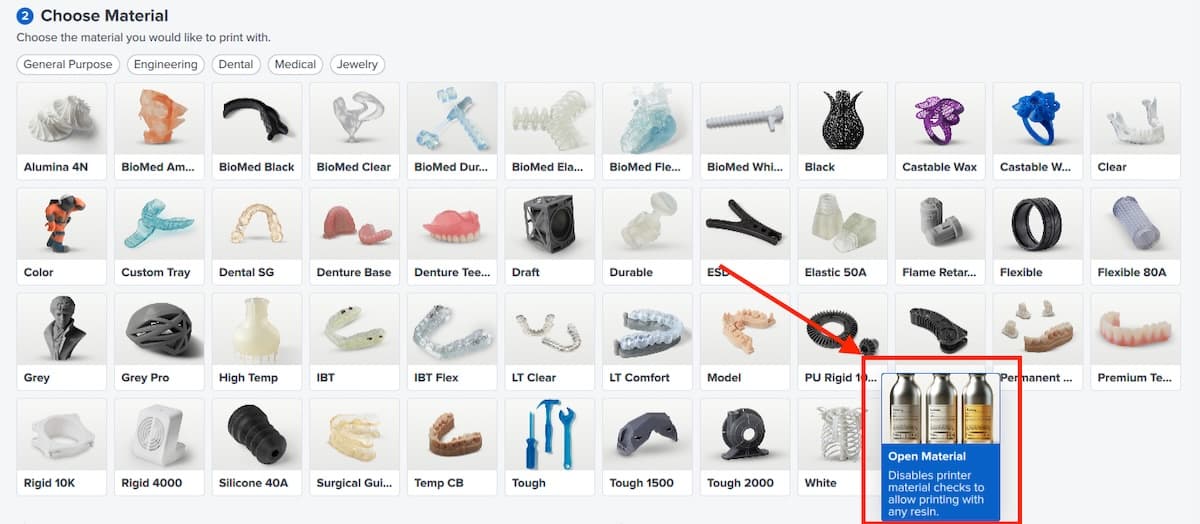
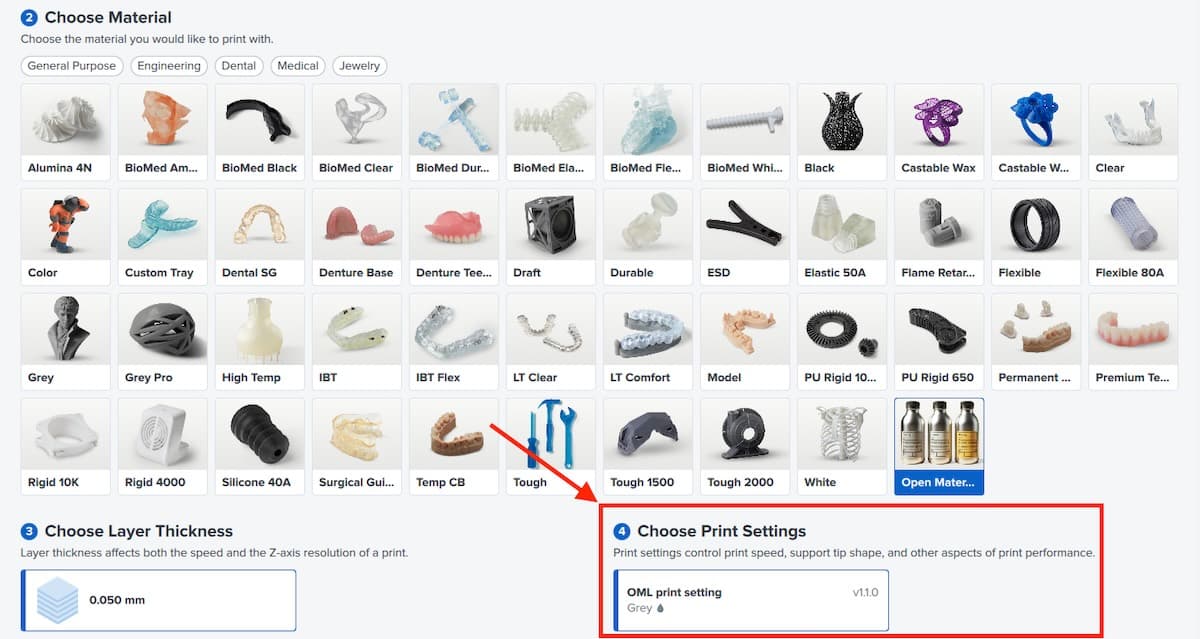
  1. 向下滚动至 Choose Material(选择材料)部分。选择 Open Material
在 PreForm 中选择 Open Material
  1. Scroll down to the Choose Print Settings section. Select the print setting you created earlier.
Selecting a print setting for an Open Material in PreForm
  1. Click Apply. The main PreForm workspace reappears.
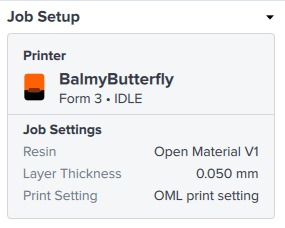
  2. In the Job Setup card, confirm that the resin has been set to Open Material V1 and your custom print setting has been selected.
PreForm Job Setup card showing an Open Material selected
  1. Set up your job and upload it to your printer, as you would with a Formlabs print setting.

Setting up your printer to print with Open Material Mode

Insert a new resin tank and manually pour in the resin you want to print with. When printing with a job with Open Material Mode, automatic resin dispensing is disabled.

Note:

Use a dedicated tank for printing with Open Material Mode. The printer automatically programs the tank for use with open materials.

Printer behavior with Open Material Mode

When printing with Open Material Mode, the printer behaves differently than when printing with a Formlabs resin. Here are some things to keep in mind:

  1. The printer will not automatically dispense resin from the cartridge. Manually pour resin into the tank before starting a print. Pour enough resin to cover the tank film.
  2. The printer will not detect the resin level in the tank automatically and will not warn you if the resin is too low or if the tank is overfilled. Monitor the resin level in the tank during the print and manually refill the tank as needed.
  3. Normally, Formlabs SLA printers warn you about resin tank and resin cartridge mismatches to avoid dispensing incorrect resin. For jobs set up with Open Material Mode, this check is disabled. If you’re printing with different resins in different tanks, mark them appropriately to avoid mixing resins.
  4. The printer will not provide automatic tank lifetime warnings for tanks used with non-Formlabs resins.

利用 Open Material Mode 进行打印的提示

Printer and consumable performance may also change depending on the third-party resin you are using.

Depending on the non-Formlabs resin you are printing with, the tank lifetime may be shortened. Performance may degrade significantly and lead to tank failures and damage to your printer. You are responsible for monitoring lifetime and performance of the resin tank.

Formlabs SLA printers heat resin while preparing for a print. For non-Formlabs resins, this may lead to evaporation of volatile components. Ensure appropriate ventilation when printing with third-party resins.