注:
点击 Ignore(忽略),重新编程树脂槽以匹配打印任务的树脂类型。

Form 4 和 Form 4L 遇到异常情况时,其触摸屏会显示错误信息以及关于该错误的详细信息。本文概述了解决 Form 4 代打印机中或正常运行时预计出现的常见错误代码的初步故障排查步骤。如果遇到本文中未提及的错误代码,请参阅下文中的一般故障排查步骤。
Form 4 和 Form 4L 代的错误代码格式为 X.YY.ZZ,其中 X 是机器代码、YY 是子系统,ZZ 是唯一错误代码,表示相关警告。Form 4 代打印机的机器代码是 1,因此所有此类打印机错误的完整错误代码都以 1 开头。错误组编号描述了错误类型,而子代码则指定了特定的子系统或故障模式。例如,Form 4 代错误组 3 的所有子代码都与加热器和树脂温度有关,而错误 1.3.1 尤其与树脂未达到目标温度有关。
一般故障排查步骤
对于 Form 4 和 Form 4L 代打印机出现的大多数问题,建议按照以下步骤进行操作:
诊断日志
Form 4 和 Form 4L 代打印机可保存诊断日志,用以提供有关机器功能的详细信息。联系 Formlabs Support 或您的授权经销商以加快解决故障时,请附上诊断日志以及其他相关观察结果和详细信息。
对于通过有效 Wi-Fi 或以太网连接到互联网的机器:
对于未连接到互联网的打印机:
进一步了解网络和非网络连接选项。
控制错误(错误组 1)
Form 4 和 Form 4L 错误组 1 (1-61) 的所有子代码都与机器中的子系统通信和马达控制有关。
错误 1.1.1:马达无法归位
Error 1.1.1(错误 1.1.1)表示马达未能归位。可能是由于碎屑或打印机用于确定马达位置的限位开关损坏而导致马达停转。检查并清除树脂槽或构建平台上的任何碎屑,然后检查构建平台和混合器在打印过程中是否可以正常移动。固件版本 1.4 已删除此错误。如果此错误信息反复出现,请更新打印机固件。
错误 1.1.3:内部错误
错误 1.1.3表示打印机子系统之间的内部通信错误。解决问题:
错误 1.1.4:树脂液位传感器未编程
Error 1.1.4(错误 1.1.4)表示打印机的 LevelSense 液位检测板出现问题。解决问题:
错误 1.1.5:无法测量树脂槽中的树脂
Error 1.1.5(错误 1.1.5)表示打印机的 LevelSense 液位检测板出现问题。如果打印正在进行,请对其进行监控,以确保树脂槽中的树脂不会耗尽。要解决此问题,请按照与错误 1.1.4:树脂液位传感器未编程中相同的故障排除步骤进行处理。
错误 1.1.6:混合器检测到碎屑
Error 1.1.6(错误 1.1.6)表示混合器在树脂槽中移动时撞击到碎屑。解决问题:
如果混合器与构建平台发生碰撞,是因为构建平台在打印过程中粘在了树脂槽上:
如果在打印机开机时立即出现此错误,或在使用 Move motors(移动马达) 工具时(未插入树脂槽或混合器)混合器意外移动,请更换混合器驱动组件。请按照更换 Form 4 混合器驱动组件或更换 Form 4L 混合器驱动组件维修指南中的说明进行操作。可从 Formlabs 网上商店购买混合器驱动组件替换件。
错误 1.1.7:构建平台检测到碎屑
Error 1.1.7(错误 1.1.7)表示构建平台在下降到树脂槽时遇到碎屑。解决问题:
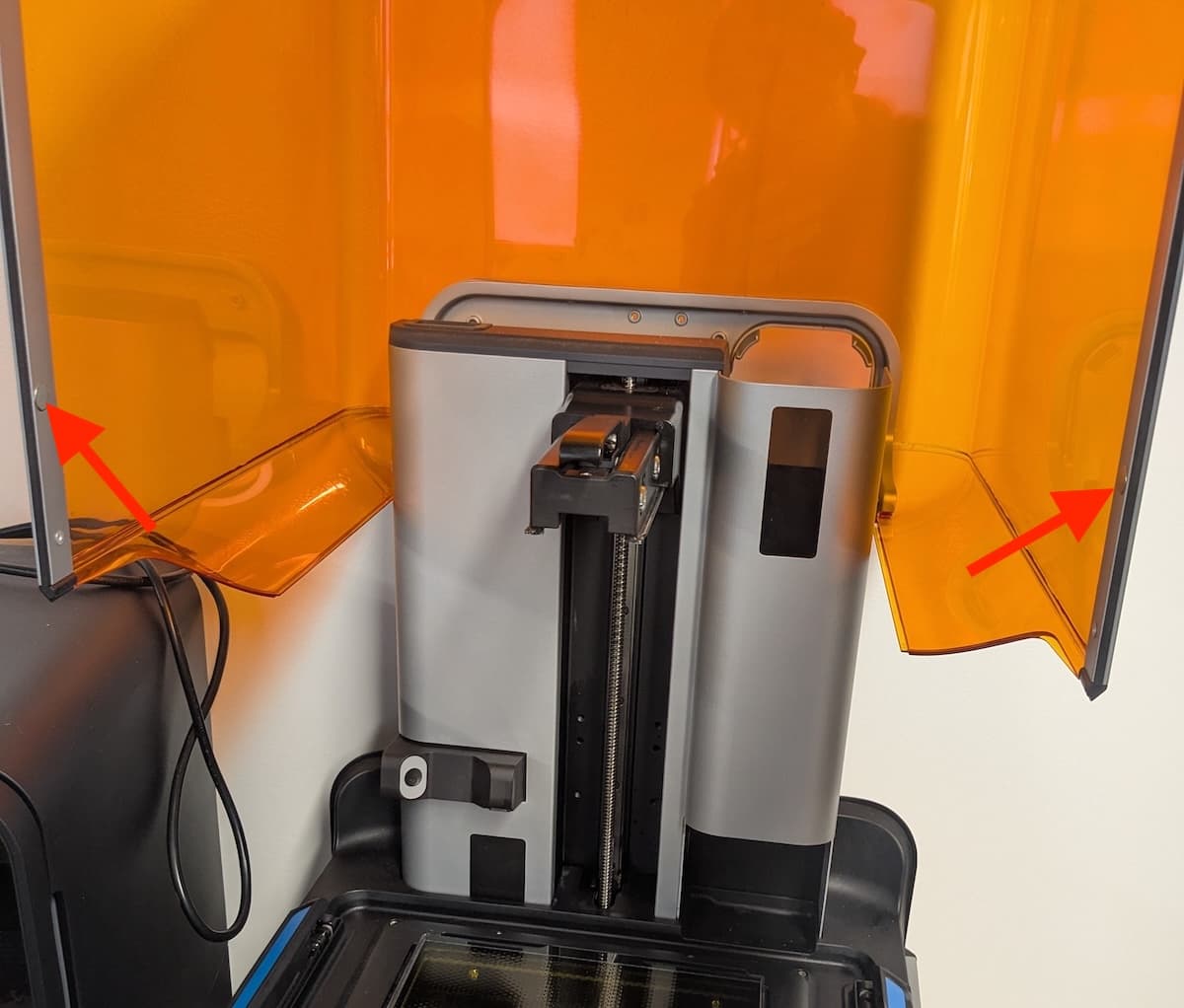
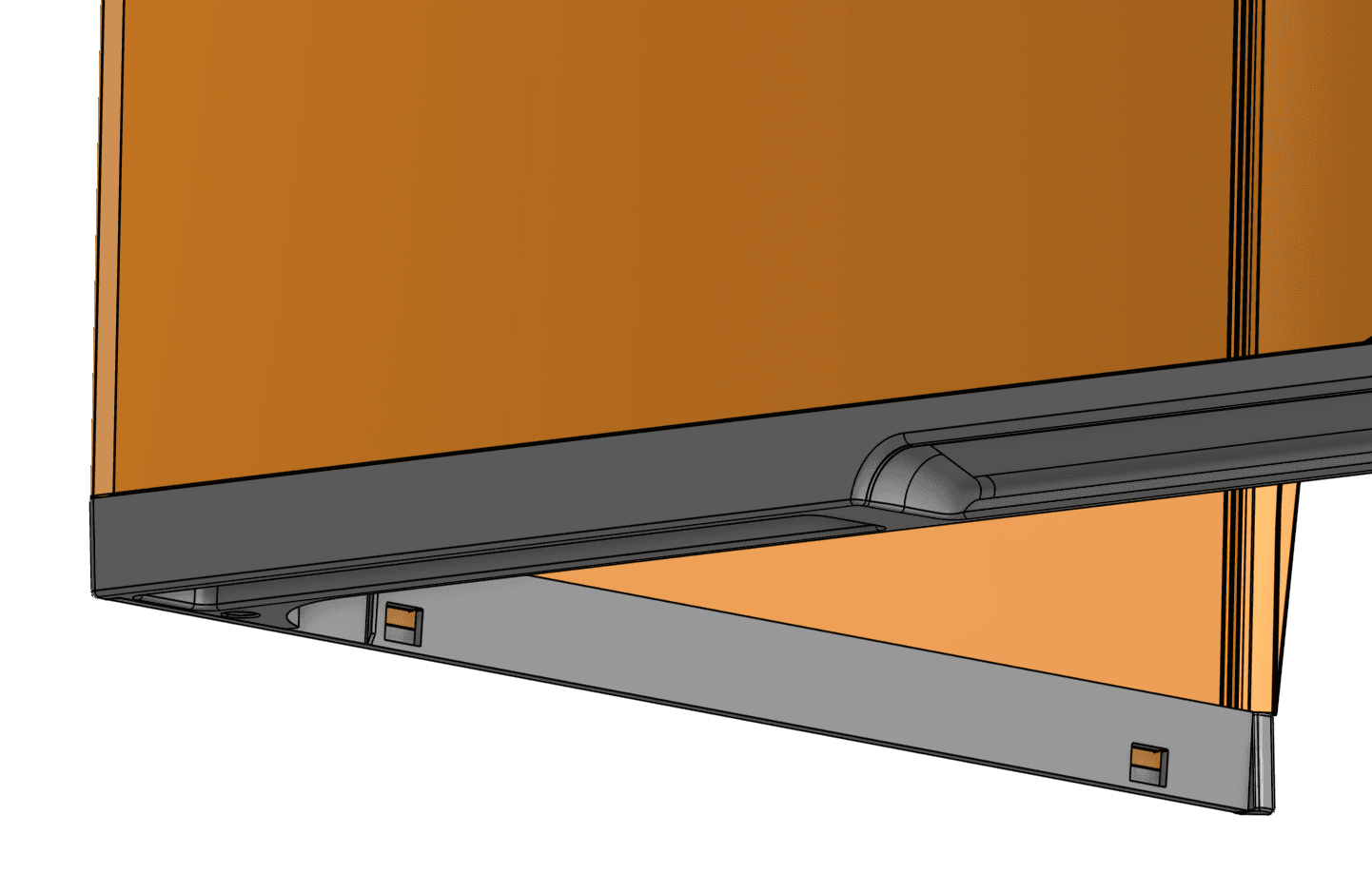
错误 1.1.17:机罩已打开
Error 1.1.7(错误 1.1.7)表示打印过程中机罩(Form 4 代)或门(Form 4L 代)打开。出于安全考虑,只要打开机罩或门,打印就会暂停。关闭机罩或门后继续。
如果机罩或门并未打开或关闭无法解决问题:
错误 1.1.23:主板通信失败
Error 1.1.23(错误 1.1.23)表示打印机向主板发送信息失败。解决问题:
错误 1.1.31:固件不兼容
Error 1.1.31(错误 1.1.31)表示打印机上安装的固件出现问题。确保打印机的固件为最新版本。如果问题仍然存在,且打印机固件已经为最新版本,请手动重新安装最新的固件软件包。重新启动打印机,然后再试一次。
错误 1.1.32:LPU 风扇故障
Error 1.1.32(错误 1.1.32)表示 Light Processing Unit (LPU) 冷却风扇发生故障。继续使用打印机可能会导致 LPU 损坏。解决问题:
错误 1.1.33:背光风扇故障
Error 1.1.33(错误 1.1.33)表示背光模块冷却风扇发生故障。继续使用打印机可能会导致背光模块损坏。解决问题:
错误 1.1.34:PSU 风扇故障
Error 1.1.34(错误 1.1.34)表示电源冷却风扇发生故障。继续使用打印机可能会导致电源损坏。重新启动打印机,重新刷新固件,然后再试一次。如果此错误信息反复出现,请联系 Formlabs Support 或您的授权经销商。
错误 1.1.40:打印机电压低于预期
Error 1.1.40(错误 1.1.40)表示电源输出的电压低于预期。如果打印成功,则可以忽略此错误信息。但是,低电压可能会影响打印,包括导致背光模块无法亮起。解决问题:
错误 1.1.41:内部错误
错误 1.1.41 表示打印机子系统之间发生内部通信错误。解决问题:
错误 1.1.47:无法归位构建平台
Error 1.1.47(错误 1.1.47)表示构建平台无法正确归位。
错误 1.1.48:无法归位混合器
Error 1.1.48(错误 1.1.48)表示混合器无法正确归位。
错误 1.1.51:后部 LPU 风扇故障(仅限 Form 4L 代)
Form 4L 代打印机配有两个 Light Processing Unit (LPU) 风扇。错误 1.1.51 表示后部 LPU 冷却风扇发生故障。继续使用打印机可能会导致 LPU 损坏。
错误 1.1.52:前部 LPU 风扇故障(仅限 Form 4L 代)
Form 4L 代打印机配有两个 Light Processing Unit (LPU) 风扇。错误 1.1.52表示前部 LPU 冷却风扇发生故障。继续使用打印机可能会导致 LPU 损坏。
错误 1.1.53:两个 LPU 风扇均发生故障(仅限 Form 4L 代)
Form 4L 代打印机配有两个 Light Processing Unit (LPU) 风扇。错误 1.1.53表示两个 LPU 冷却风扇均已发生故障。继续使用打印机可能会导致 LPU 损坏。
错误 1.1.54:左侧背光模块风扇故障
Form 4L 代打印机配有两个背光模块风扇。错误 1.1.54表示左侧背光模块冷却风扇发生故障。继续使用打印机可能会导致背光模块损坏。解决问题:
错误 1.1.55:右侧背光模块风扇故障
Form 4L 代打印机配有两个背光模块风扇。错误 1.1.55表示右侧背光模块冷却风扇发生故障。继续使用打印机可能会导致背光模块损坏。解决问题:
错误 1.1.56:两个背光模块风扇均发生故障
Form 4L 代打印机配有两个背光模块风扇。错误 1.1.56表示两个背光模块冷却风扇均已发生故障。继续使用打印机可能会导致背光模块损坏。解决问题:
加热器错误(错误组 3)
Form 4 和 Form 4L 错误组 3 (1-12) 的所有子代码都与加热器有关。
错误 1.3.1:树脂无法加热
Error 1.3.1(错误 1.3.1)表示树脂在一段时间后未达到目标温度。解决问题:
更多相关信息,请参阅支持文档保持树脂温度。
错误 1.3.3:树脂过热
Error 1.3.3(错误 1.3.3)表示树脂槽中的树脂已超过目标温度。解决问题:
更多相关信息,请参阅支持文档保持树脂温度。
错误 1.3.4:加热器过热
Error 1.3.4(错误 1.3.4)表示加热器温度已超过其安全运行范围。停止当前所有打印任务,因为继续打印可能会损坏打印机并导致打印失败。要解决此问题,请按照与错误 1.3.3:树脂过热中相同的故障排除步骤进行处理。
更多相关信息,请参阅支持文档保持树脂温度。
错误 1.3.5:加热器未连接
Error 1.3.5(错误 1.3.5)表示加热器可能未连接。加热器位于 LPU 组件的框架内。
错误 1.3.6 和错误 1.3.7:无法测量树脂温度
Error 1.3.6(错误 1.3.6)和 Error 1.3.7(错误 1.3.7)表示打印机无法测量树脂槽中树脂的当前温度,可能需要禁用加热器。解决问题:
错误 1.3.8 和错误 1.3.9:无法测量加热器温度
Error 1.3.8(错误 1.3.8)和 Error 1.3.9(错误 1.3.9)表示打印机无法测量加热器的当前温度。加热器位于 LPU 组件的框架下方。
错误 1.3.10 和错误 1.3.11:加热器电流过大
Error 1.3.10(错误 1.3.10)和 Error 1.3.11(错误 1.3.11)表示加热器在预印过程或打印过程遇到问题。加热器位于 LPU 组件的框架内。要解决此问题,请按照与错误 1.3.8 和错误 1.3.9:无法测量加热器温度中相同的故障排除步骤进行处理。
错误 1.3.12:加热树脂至打印温度
打印机可能会显示 Error 1.3.12(错误 1.3.12),表示打印机正在加热树脂槽中的树脂。这并不一定说明存在问题。如果打印机长时间未能完成树脂加热,请按照加热器相关错误的排查方法检查树脂盒。
加速度计错误(错误组 4)
Form 4 和 Form 4L 错误组 4 (1-7) 的所有子代码都与加速度计有关。
错误 1.4.1:打印机未水平
Formlabs SLA 打印机在处于绝对水平状态时运行效果最佳。如有必要,触摸屏会提示您调平打印机,并显示 Error 1.4.1(错误 1.4.1)。在打印机触摸屏上点击 Settings(设置)> Tools(工具)>Printer Leveling(打印机调平),查看当前调平状态。请按照触摸屏提示进行操作,并使用调平工具调平打印机。如果错误仍然存在,请重新刷新打印机的固件。
错误 1.4.2 和错误 1.4.3:加速计未连接
错误 1.4.2 和 错误 1.4.3 表示打印机加速度计出现问题。重新启动打印机,重新刷新固件,然后再试一次。如果此错误信息反复出现,请联系 Formlabs Support 或您的授权经销商。
错误 1.4.7:加速度计重新校准失败
错误 1.4.7表示加速度计校准程序失败。解决问题:
背光错误(错误组 5)
Form 4 和 Form 4L 错误组 5 (1-11) 的所有子代码都与紫外线背光模块有关。
错误 1.5.1:背光过热
Error 1.5.1(错误 1.5.1)表示背光模块过热。背光模块冷却后,将恢复打印。解决问题:
错误 1.5.2:未检测到背光模块
Error 1.5.2(错误 1.5.2)表示无法检测到背光模块。解决问题:
在极少数情况下,安装 Form 4L 代背光模块替换件后,打印机可能会立即显示此错误。如果出现这种情况,请启用 Remote Assistance(远程协助),并联系 Formlabs Support。
错误 1.5.5:未识别背光模块
Error 1.5.5(错误 1.5.5)表示无法识别背光模块。要解决此问题,请按照与错误 1.5.2:未检测到背光模块中相同的故障排除步骤进行处理。
在极少数情况下,安装 Form 4L 代背光模块替换件后,打印机可能会立即显示此错误。如果出现这种情况,请启用 Remote Assistance(远程协助),并联系 Formlabs Support。
错误 1.5.6:背光模块打开时间过长
Error 1.5.6(错误 1.5.6)表示背光模块开启时间超过 5 分钟,因此打印机出于自我保护机制将其关闭。解决问题:
错误 1.5.7:背光模块无响应
Error 1.5.7(错误 1.5.7)表示背光模块未响应打印机的命令。要解决此问题,请按照与错误 1.5.2:未检测到背光模块中相同的故障排除步骤进行处理。
错误 1.5.9 和错误 1.5.10:无法测量背光温度
Error 1.5.9(错误 1.5.9)和 Error 1.5.10(错误 1.5.10)表示打印机无法测量背光模块的温度。要解决此问题,请按照与错误 1.5.2:未检测到背光模块中相同的故障排除步骤进行处理。
错误 1.5.11:无法打开背光模块
Error 1.5.11(错误 1.5.11)表示打印机无法打开背光模块。要解决此问题,请按照与错误 1.5.2:未检测到背光模块中相同的故障排除步骤进行处理。
耗材错误(错误组 6)
Form 4 和 Form 4L 错误 6 (1-32) 的所有子代码都与耗材(树脂盒、树脂槽和构建平台)有关。
错误 1.6.2:树脂盒缺失
如果在打印过程中移除树脂盒,仍可使用树脂槽中储存的树脂继续打印一段时间。打印机会显示 Error 1.6.2(错误 1.6.2)。重新插入树脂盒继续。如果仍无法解决问题:
错误 1.6.3:缺少树脂盒而导致打印暂停
如果在打印过程中移除树脂盒,仍可使用树脂槽中储存的树脂继续打印一段时间。在此之后,打印暂停。打印机显示 Error 1.6.3(错误 1.6.3)表示由于取出树脂盒,打印暂停。重新插入树脂盒继续。如果仍无法解决问题,请按照与错误 1.6.2:树脂盒缺失中相同的故障排除步骤进行处理。
错误 1.6.4:左侧树脂盒不匹配(仅限 Form 4L 代)
打印机会检测树脂槽和树脂盒中的树脂类型,确保其与当前打印任务相匹配。如果左侧树脂盒中的树脂类型与打印任务中识别的树脂类型不匹配,打印机则会显示 Error 1.6.4(错误 1.6.4),并提示您插入与打印任务设置相匹配的树脂盒。确保树脂盒中的树脂与打印任务的树脂类型一致,并具有相同的材料版本号。如果仍无法解决问题:
错误 1.6.5:左侧树脂盒已超出限制(仅限 Form 4L 代)
每个树脂盒都能容纳并可靠分配一升树脂。如果树脂盒已超过使用寿命,打印机将显示 Error 1.6.5(错误 1.6.5)。在一升树脂分配完后,请处置树脂盒并用新的树脂盒继续打印。更换耗尽的树脂盒后,重新开始打印。如果此错误被误报,请按照与错误 1.6.4:左侧树脂盒不匹配中相同的故障排除步骤进行处理。
错误 1.6.6:右侧树脂盒不匹配(仅限 Form 4L 代)
打印机会检测树脂槽和树脂盒中的树脂类型,确保其与当前打印任务相匹配。如果右侧树脂盒中的树脂类型与打印任务中识别的树脂类型不匹配,打印机则会显示 Error 1.6.6(错误 1.6.6),并提示您插入与打印任务设置相匹配的树脂盒。确保树脂盒中的树脂与打印任务的树脂类型一致,并具有相同的材料版本号。如果仍无法解决问题:
错误 1.6.7:右侧树脂盒已超出限制(仅限 Form 4L 代)
每个树脂盒都能容纳并可靠分配一升树脂。如果树脂盒已超过使用寿命,打印机将显示 Error 1.6.7(错误 1.6.7)。在一升树脂分配完后,请处置树脂盒并用新的树脂盒继续打印。更换耗尽的树脂盒后,重新开始打印。如果此错误被误报,请按照与错误 1.6.6:右侧树脂盒不匹配中相同的故障排除步骤进行处理。
错误 1.6.9:树脂槽缺失
Error 1.6.9(错误 1.6.9)表示树脂槽缺失或在打印过程中移除。重新插入并固定树脂槽,继续操作。如果仍无法解决问题:
错误 1.6.10:插入错误的树脂槽
当树脂槽中的树脂类型与打印任务要求不符时,打印机会显示 Error 1.6.10(错误 1.6.10)。取出树脂槽,然后更换为与任务匹配的树脂槽。
注:
点击 Ignore(忽略),重新编程树脂槽以匹配打印任务的树脂类型。
错误 1.6.11:树脂槽已超出使用寿命
错误 1.6.11 表示树脂槽已超过其建议使用寿命。考虑更换树脂槽,以确保成功打印。
错误 1.6.12:树脂槽未锁定
错误 1.6.12表示树脂槽未使用树脂槽锁销锁定到位。用大拇指压住树脂槽两侧,合上锁销,固定树脂槽。如果仍无法解决问题:
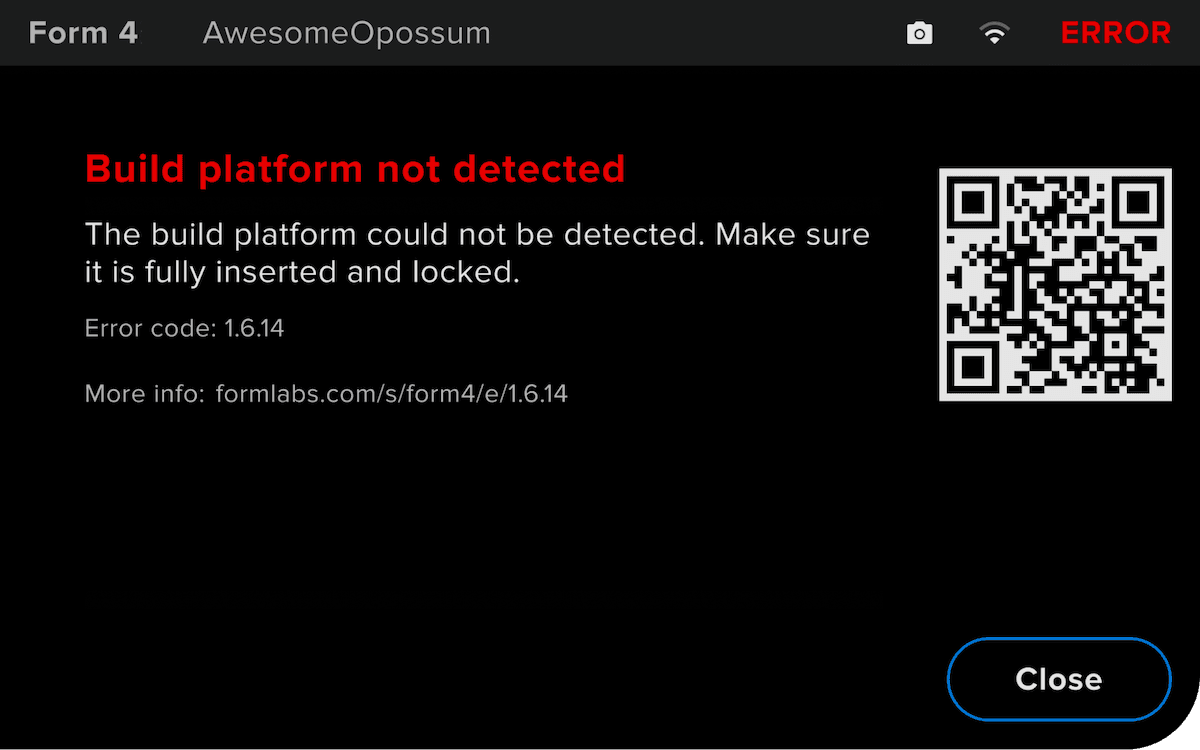
错误 1.6.14:无法检测到构建平台
Error 1.6.14(错误 1.6.14)表示打印机无法检测到构建平台。插入并固定构建平台,以便继续。如果确定打印机中已插入干净的构建平台,也可以点击 Ignore(忽略) 继续。
如果仍无法解决问题,请打开打印机机罩,取下构建平台,检查构建平台支架右上角的柱塞销。
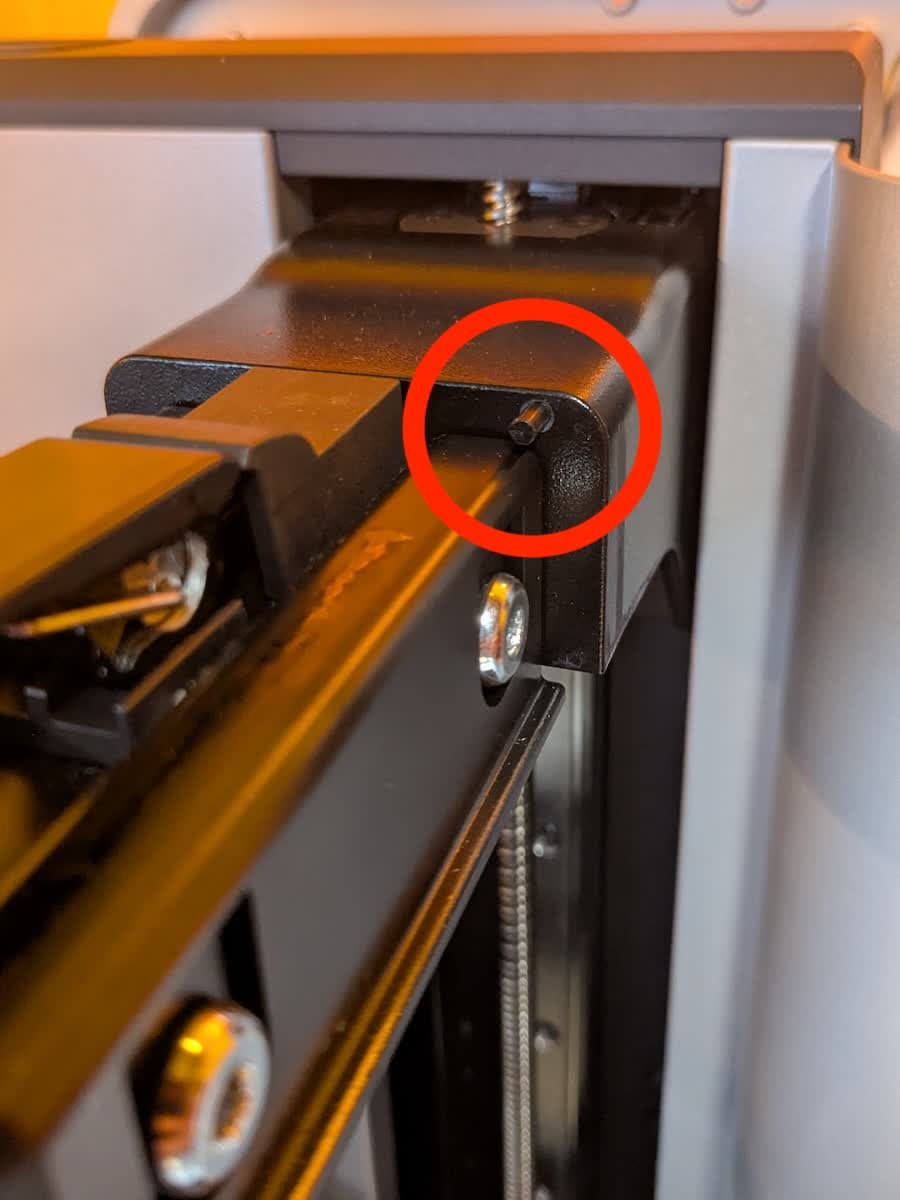
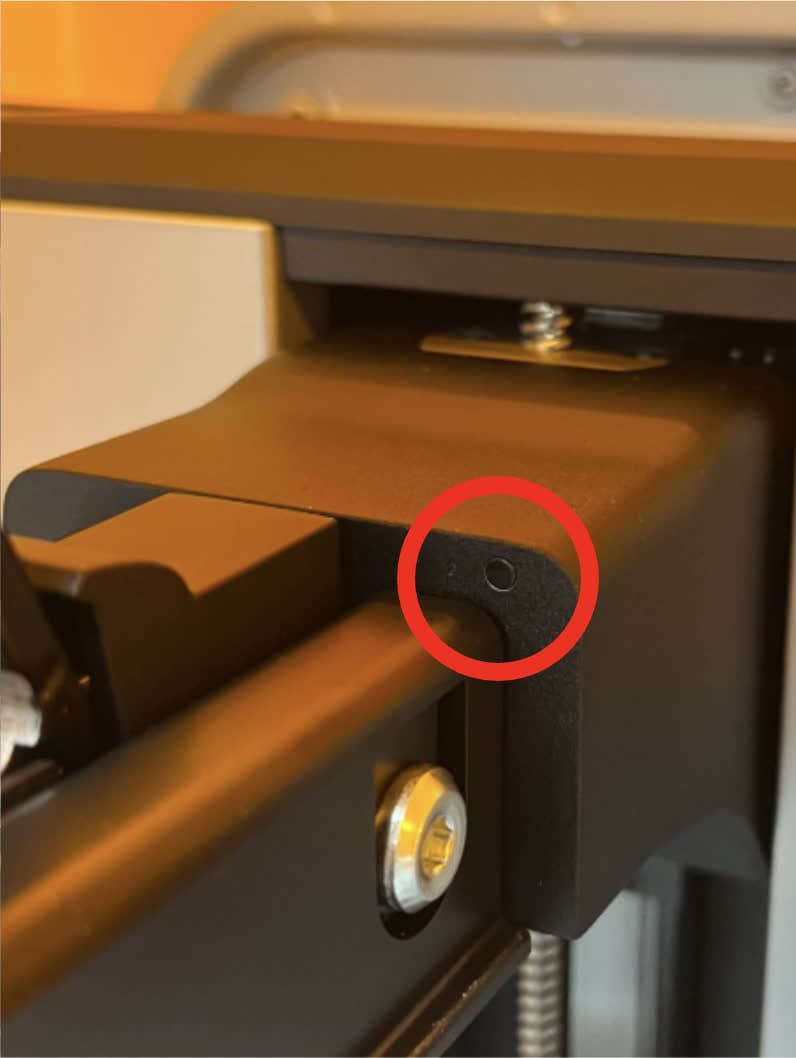
如果柱塞可见:
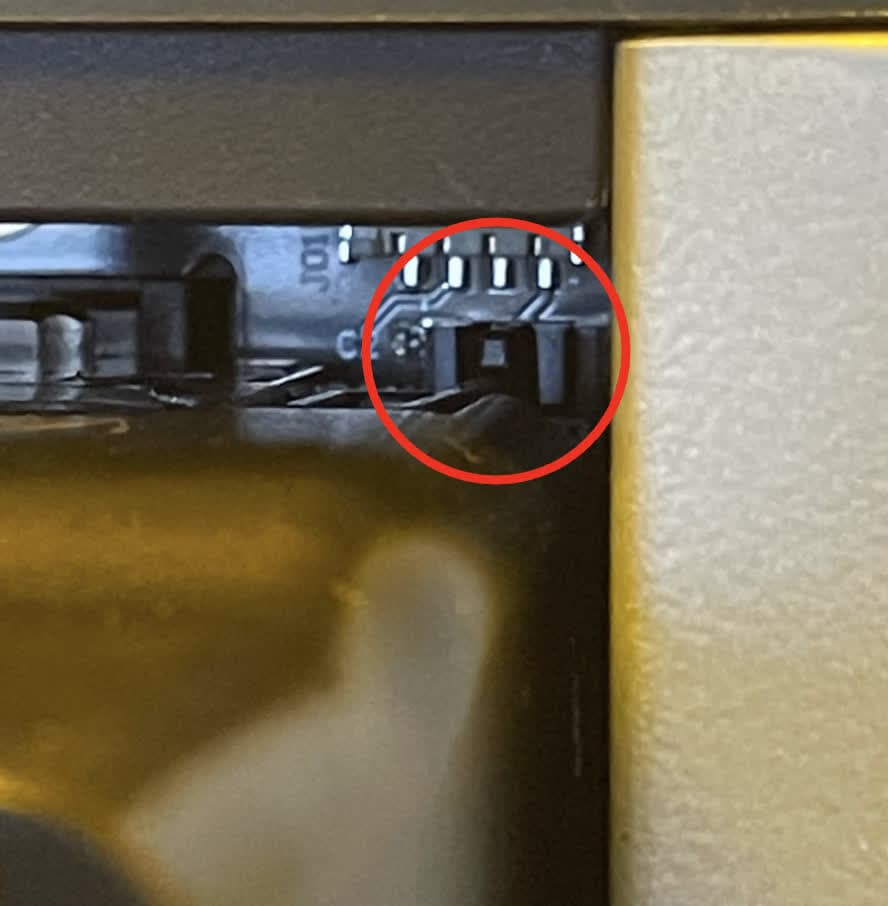
如果柱塞卡在构建平台支架内:
注意:
请勿在没有修整工具的情况下切割柱塞。修整工具可确保切割出正确的长度。切割过多会导致柱塞无法与构建平台传感器进行交互,从而永久性地破坏构建平台检测。
如果错误仍然存在,请联系 Formlabs Support 或您的授权经销商以获取帮助。
错误 1.6.27:树脂盒不匹配(仅限 Form 4L 代)
打印机会检测树脂槽和树脂盒中的树脂类型,确保其与当前打印任务相匹配。如果与打印任务中识别的树脂类型不匹配,打印机则会显示 Error 1.6.27(错误 1.6.27),并提示您插入与打印任务设置相匹配的树脂盒。确保树脂盒中的树脂与打印任务的树脂类型一致,并具有相同的材料版本号。如果仍无法解决问题:
错误 1.6.28:树脂盒已超出限制(仅限 Form 4 代)
每个树脂盒都能容纳并可靠分配一升树脂。如果树脂盒已超过使用寿命,打印机将显示 Error 1.6.28(错误 1.6.28)。在一升树脂分配完后,请处置树脂盒并用新的树脂盒继续打印。更换耗尽的树脂盒后,重新开始打印。如果此错误被误报,请按照与错误 1.6.27:树脂盒不匹配(仅限 Form 4 代)中相同的故障排除步骤进行处理。
错误 1.6.33:插入未识别的树脂槽
Formlabs 为其 SLA 打印机提供多种树脂槽类型。Error 1.6.33(错误 1.6.33)表示打印机无法识别插入的树脂槽。解决问题:
碎屑检测错误(错误组 7)
Form 4 和 Form 4L 错误组 7 (1-7) 的所有子代码都与打印机在打印准备过程中检测到树脂槽或构建平台中的碎屑有关。
错误 1.7.2:混合器检测到碎屑
错误 1.7.2 表示混合器在打印前构建平台刮涂过程中遇到碎屑。请使用刮刀清除构建平台上的任何固化树脂,然后重试。如果问题仍然存在,请按照与错误 1.1.6:混合器检测到碎屑中相同的故障排除步骤进行处理。
错误 1.7.3:构建平台检测到碎屑
错误 1.7.3 表示构建平台在打印前下降到树脂槽时遇到碎屑。请使用刮刀清除构建平台上的任何固化树脂,然后重试。如果问题仍然存在,请按照与错误 1.1.7:构建平台检测到碎屑中相同的故障排除步骤进行处理。
混合器错误(错误组 8)
Form 4 和 Form 4L 错误组 8 (1) 的所有子代码都与混合器有关。
错误 1.8.1:未检测到混合器
Error 1.8.1(错误 1.8.1)表示打印机未检测到混合器。解决问题:
分配器错误(错误组 9)
Form 4 和 Form 4L 错误组 9 (1-25) 的所有子代码都与树脂分配系统有关。
错误 1.9.4:无法测量树脂液位
错误 1.9.4 表示打印机无法测量树脂槽中的树脂量。解决问题:
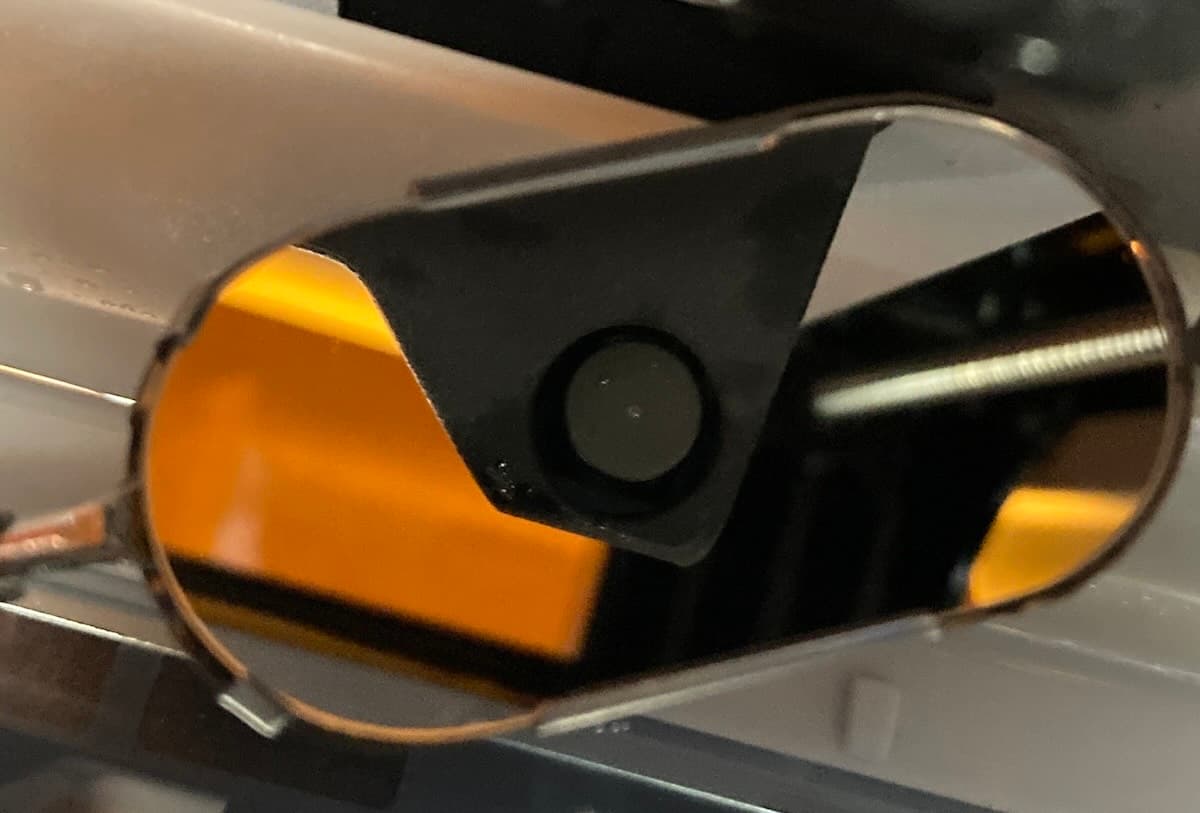
错误 1.9.5:树脂槽中树脂填充过量
若树脂槽树脂填充过量,打印机将显示 Error 1.9.5(错误 1.9.5)。使用注射器或小型一次性杯将少量树脂转移到单独的容器中。若打印机的树脂槽填充过量警告有误:
错误 1.9.6:树脂量不足以完成打印
Error 1.9.6(错误 1.9.6)表示当前打印任务所需的树脂超过了树脂槽和树脂盒中的可用数量。可能需要在打印过程中更换树脂盒。树脂盒为空时,打印机将暂停并显示 Error 1.9.16(错误 1.9.16)。解决问题:
错误 1.9.7:树脂不足而导致打印暂停
Formlabs SLA 打印机配备有名为 LevelSense 的组件,用于在打印过程中测量树脂槽中的树脂量。通过监测树脂液位,每当树脂槽中的树脂即将耗尽时,打印机就可以自动将树脂从树脂盒中分配到树脂槽中。Error 1.9.7(错误 1.9.7)表示打印机已暂停并需要重新填充树脂槽。如果此信息反复出现:
错误 1.9.9:左侧树脂盒已空(仅限 Form 4L 代)
如果左侧树脂盒中没有剩余树脂,打印机将显示 Error 1.9.9(错误 1.9.9)。每个树脂盒都能容纳并可靠分配一升树脂。在一升树脂分配完后,请处置树脂盒并用新的树脂盒继续打印。
如果树脂盒未空,但打印机仍显示此错误:
错误 1.9.10:右侧树脂盒已空(仅限 Form 4L 代)
如果右侧树脂盒中没有剩余树脂,打印机将显示 Error 1.9.10(错误 1.9.10)。每个树脂盒都能容纳并可靠分配一升树脂。在一升树脂分配完后,请处置树脂盒并用新的树脂盒继续打印。
如果树脂盒未空,但打印机仍显示此错误:
错误 1.9.11:左侧树脂盒分配缓慢(仅限 Form 4L 代)
Error 1.9.11(错误 1.9.11)表示左侧树脂盒中树脂的分配速度低于预期。如果树脂盒不为空但打印机仍然无法分配树脂,则树脂盒可能存在问题,导致无法分配树脂:
注:
打印机可能会缓慢分配树脂,但不会显示错误信息。无论是否显示错误信息,请按照上述故障排查步骤解决分配速度缓慢的问题。
错误 1.9.12:右侧树脂盒分配缓慢(仅限 Form 4L 代)
错误 1.9.12 表示右侧树脂盒的树脂分配速度低于预期。如果树脂盒不为空但打印机仍然无法分配树脂,则树脂盒可能存在问题,导致无法分配树脂:
注:
打印机可能会缓慢分配树脂,但不会显示错误信息。无论是否显示错误信息,请按照上述故障排查步骤解决分配速度缓慢的问题。
错误 1.9.13、错误 1.9.14、错误 1.9.15 和错误 1.9.19:LevelSense 重新校准距离错误
Formlabs SLA 打印机配备有名为 LevelSense 的组件,用于在打印过程中测量树脂槽中的树脂量。在 Form 4 和 Form 4L 代打印机上,打印机通过测量 LevelSense 传感器到液态树脂的距离来实现这一功能。如果打印机对树脂液位的测量不准确,需要重新校准 LevelSense。如果打印机无法测量该距离或该距离超出预期范围,打印机将显示 Error 1.9.13(错误 1.9.13)、Error 1.9.14(错误 1.9.14)、Error 1.9.15(错误 1.9.15)或 Error 1.9.19(错误 1.9.19)。解决问题:
Error 1.9.16, Error 1.9.17, and Error 1.9.18: LevelSense temperature errors
Formlabs SLA printers have a component known as LevelSense that measures the amount of resin in the resin tank during a print. On Form 4 and Form 4L generation printers, the LevelSense system also measures the ambient temperature to accurately measure the resin level. If the printer is incorrectly measuring resin level, recalibrate the LevelSense. During recalibration, if the printer cannot measure the ambient temperature or it is out of the expected range, the printer displays Error 1.9.16, Error 1.9.17, or Error 1.9.18. To resolve these issues:
Error 1.9.20: Filling tank
The printer may show Error 1.9.20 to inform you that it is filling the resin tank. It does not necessarily indicate that there is an issue. If the printer fails to fill the resin tank after a prolonged length of time, check the resin cartridge as you would for a dispense-related error.
Error 1.9.21: Could not determine offset
Error 1.9.21 indicates that the cartridge sensor readings were not stable during cartridge floor load cell calibration. Make sure that nothing is sitting on the cartridge floor(s) and retry the cartridge floor calibration process. If the issue persists:
Error 1.9.22: Cartridge is empty (Form 4 generation only)
The printer displays Error 1.9.22 if there is no more resin in the cartridge. Each cartridge contains and can reliably dispense one liter of resin. After the full liter dispenses, dispose of the cartridge and continue printing with a new cartridge.
If a cartridge is not empty but the printer displays this error:
注:
打印机可能无法分配树脂,但不会显示错误信息。无论是否显示错误信息,请按照上述故障排查步骤解决树脂分配问题。
错误 1.9.23:树脂盒分配缓慢(仅限 Form 4 代)
错误 1.9.23 表示树脂从树脂盒中分配的速度低于预期。如果树脂盒不为空但打印机仍然无法分配树脂,则树脂盒可能存在问题,导致无法分配树脂:
注:
打印机可能会缓慢分配树脂,但不会显示错误信息。无论是否显示错误信息,请按照上述故障排查步骤解决分配速度缓慢的问题。
错误 1.9.24:树脂不足而导致打印暂停
Formlabs SLA 打印机配备有名为 LevelSense 的组件,用于在打印过程中测量树脂槽中的树脂量。通过监测树脂液位,每当树脂槽中的树脂即将耗尽时,打印机就可以自动将树脂从树脂盒中分配到树脂槽中。
但是,采用 Open Material Mode 的打印机无法自动从树脂盒分配树脂。Error 1.9.24(错误 1.9.24)表示打印机已暂停,用户需要手动重新填充树脂槽。如果此信息反复出现:
Light Processing Unit 错误(错误组 10)
Form 4 和 Form 4L 错误组 10 (1-9) 的所有子代码都与 Light Processing Unit (LPU) 有关。
错误 1.10.1 和错误 1.10.4:LPU 未连接
Error 1.10.1(错误 1.10.1)和 Error 1.10.4(错误 1.10.4)表示 Light Processing Unit (LPU) 未连接。解决问题:
错误 1.10.3:未检测到 LPU
Error 1.10.3(错误 1.10.3)表示无法检测到 Light Processing Unit (LPU)。要解决此问题,请按照与错误 1.10.1 和错误 1.10.4:LPU 未连接中相同的故障排除步骤进行处理。
错误 1.10.5:无法加载打印文件
Error 1.10.5(错误 1.10.5)表示已上传打印任务中的文件出现问题。更新 PreForm 和打印机固件,然后重新上传打印任务。
错误 1.10.8:LPU 已超出使用寿命
Error 1.10.8(错误 1.10.8)表示 Light Processing Unit 已超出其推荐使用寿命。继续打印可能会导致打印失败。更换 LPU。请按照更换 Form 4 Light Processing Unit 或更换 Form 4L Light Processing Unit 维修指南中的说明进行操作。可从 Formlabs 网上商店购买 LPU 替换件。
摄像机错误(错误组 12)
Form 4 和 Form 4L 错误组 12 (1-5) 的所有子代码都与摄像机系统有关。
错误 1.12.2:摄像机未连接
Error 1.12.2(错误 1.12.2)表示未连接用于捕获打印后照片的摄像机。如果故意断开或移除摄像机,请忽略此信息。解决问题:
错误 1.12.3:照片捕获失败
Error 1.12.3(错误 1.12.3)表示摄像机未能拍摄照片。要解决此问题,请按照与错误 1.12.2:摄像机未连接中相同的故障排除步骤进行处理。
挤压阶段错误(错误组 13)
每层挤压阶段是指构建平台下降到树脂槽中的过程。Form 4 和 Form 4L 错误组 13 的所有子代码都与挤压阶段有关。
错误 1.13.1:构建平台检测到碎屑
错误 1.13.1 表示打印机在挤压阶段检测到树脂槽或构建平台上有碎屑。要解决此问题,请按照与错误 1.1.7:构建平台检测到碎屑中相同的故障排除步骤进行处理。
打印状态错误(错误组 15)
Form 4 和 Form 4L 错误组 15 (1-6) 的所有子代码都与打印状态问题有关。
错误 1.15.1:无法加载打印任务
错误 1.15.1表示上传的打印任务出现问题。更新 PreForm 和打印机固件,然后重新上传打印任务。
错误 1.15.2:任务已在打印中
错误 1.15.2表示由于已有打印任务正在进行,因此未能开始新的打印任务。等待当前打印完成后再开始新的打印。如果当前没有任务正在运行,请重启打印机,重新刷新固件,然后重试。
错误 1.15.3:打印任务无效
错误 1.15.3表示上传的打印任务出现问题。可能是由于使用了与打印机固件不兼容的 PreForm 版本。更新 PreForm 和打印机固件,然后重新上传打印任务。
错误 1.15.5:拟合调试不兼容
错误 1.15.5 表示打印机的拟合调试值在上传此任务后已更新。如需解决此问题,请通过 PreForm 重新上传任务。
错误 1.15.6:存储空间不足,无法打印
错误 1.15.6 表示即使自动删除历史记录中的任务,打印机的存储空间也不足以存储打印数据。先从队列中删除任务,然后通过 PreForm 任务重新上传任务,并在上传时关闭缩时摄影功能。
Resin Pumping System 错误(错误组 20)
Form 4 和 Form 4L 错误组 20 (1–15) 的所有子代码都与 Resin Pumping System 问题有关。
错误 1.20.1:检查树脂容器
Resin Pumping System(树脂泵送系统)用于将树脂从 5L 容器中泵送到打印机中。如果容器为空,请更换容器继续打印。如果容器未空,则可能是泵中插入的树脂卡出现问题。请联系 Formlabs Support 或您的授权经销商寻求帮助。
错误 1.20.4:树脂泵未连接
Resin Pumping System (Form 4) 通过 USB 连接与 Form 4 和 Form 4L 代打印机通信。Error 1.20.4(错误 1.20.4)表示打印机通过树脂盒 RFID 传感器识别到树脂泵,但无法通过 USB 电缆与泵通信。解决问题:
错误 1.20.6:无法更新树脂泵固件
错误 1.20.6 表示打印机尝试更新树脂泵的固件,但未成功。如果泵在更新时已断开连接,就会出现这种情况。要解决此问题,请按照与错误 1.20.4:树脂泵未连接中相同的故障排除步骤进行处理。
错误 1.20.14:树脂泵连接问题
错误 1.20.14表示树脂泵连接出现问题。确保使用内置 USB 电缆将泵直接连接到打印机。请勿通过集线器、适配器或其他 USB 配件将树脂泵连接到打印机。如果错误仍然存在,请按照与错误 1.20.4:树脂泵未连接中相同的故障排除步骤进行处理。
错误 1.20.15:树脂泵电源问题
错误 1.20.15表示树脂泵的供电出现问题。要解决此问题,请按照与错误 1.20.4:树脂泵未连接中相同的故障排除步骤进行处理。如果错误仍然存在,请更换树脂泵。
Color Resin 错误(错误群组 22)
Form 4 和 Form 4L 错误组 22 (1-4) 的所有子代码都与 Color Resin 问题有关。
错误 1.22.1:树脂槽颜色不匹配
当树脂槽中的树脂颜色与任务要求不符时,打印机会显示Error 1.22.1(错误 1.22.1)。取出树脂槽,然后更换为与任务匹配的树脂槽。
注:
点击 Ignore(忽略),重新编程树脂槽以匹配打印任务的树脂颜色。
错误 1.22.2:树脂盒颜色不匹配(仅限 Form 4 代)
当树脂盒中的树脂颜色与任务要求不符时,打印机会显示错误 1.22.2。取出树脂盒,然后更换为与任务匹配的树脂盒。如果还不能解决问题,请按照与错误 1.6.27:树脂盒不匹配(仅限 Form 4 代)中相同的故障排除步骤进行处理。
错误 1.22.3:左侧树脂盒颜色不匹配(仅限 Form 4L 代)
当左侧树脂盒中的树脂颜色与任务要求不符时,打印机会显示Error 1.22.3(错误 1.22.3)。取出左侧树脂盒,然后更换为与任务匹配的树脂盒。如果还不能解决问题,请按照与错误 1.6.4:左侧树脂盒不匹配(仅限 Form 4L 代)中相同的故障排除步骤进行处理。
错误 1.22.4:右侧树脂盒颜色不匹配(仅限 Form 4L 代)
当右侧树脂盒中的树脂颜色与任务要求不符时,打印机会显示Error 1.22.4(错误 1.22.4)。取出右侧树脂盒,然后更换为与任务匹配的树脂盒。如果还不能解决问题,请按照与错误 1.6.6:右侧树脂盒不匹配(仅限 Form 4L 代)中相同的故障排除步骤进行处理。
耗材错误(错误组 227)
Form 4 和 Form 4L 错误组 227 (1-4) 的所有子代码都与已插入的树脂盒问题有关。
错误 1.227.1:树脂盒不兼容(仅限 Form 4 代)
当树脂盒中的树脂与打印机不兼容时,打印机会显示错误 1.227.1。具体来说,当用于生物相容性的树脂被放入 Form 4 打印机而非 Form 4B 打印机时,就会出现这种情况。如果您将树脂盒插入错误的打印机类型,请将其移至正确的打印机。否则,请按照 Form 4B 的设置说明,为打印机注册 Formlabs 生物相容性材料的使用寿命许可证。
错误 1.227.2:右侧树脂盒不兼容(仅限 Form 4L 代)
当右侧树脂盒中的树脂与打印机不兼容时,打印机会显示错误 1.227.2。具体来说,当用于生物相容性的树脂被放入 Form 4L 打印机而非 Form 4BL 打印机时,就会出现这种情况。如果您将树脂盒插入错误的打印机类型,请将其移至正确的打印机。否则,请按照 Form 4BL 的设置说明,为打印机注册 Formlabs 生物相容性材料的使用寿命许可证。
错误 1.227.3:左侧树脂盒不兼容(仅限 Form 4L 代)
当左侧树脂盒中的树脂与打印机不兼容时,打印机会显示错误 1.227.3。具体来说,当用于生物相容性的树脂被放入 Form 4L 打印机而非 Form 4BL 打印机时,就会出现这种情况。如果您将树脂盒插入错误的打印机类型,请将其移至正确的打印机。否则,请按照 Form 4BL 的设置说明,为打印机注册 Formlabs 生物相容性材料的使用寿命许可证。
错误 1.227.4:树脂盒不兼容(仅限 Form 4L 代)
当两个树脂盒中的树脂与打印机不兼容时,打印机会显示错误 1.227.4。具体来说,当用于生物相容性的树脂被放入 Form 4L 打印机而非 Form 4BL 打印机时,就会出现这种情况。如果您将树脂盒插入错误的打印机类型,请将其移至正确的打印机。否则,请按照 Form 4BL 的设置说明,为打印机注册 Formlabs 生物相容性材料的使用寿命许可证。
错误 1.227.5:建议检查树脂盒
最新的 Tough 系列树脂会随着时间的推移导致树脂盒咬阀膨胀。膨胀的咬阀会使分配树脂的速度变慢,尤其在树脂盒寿命即将结束时更为明显。在极少数情况下,咬阀可能会从树脂盒上完全脱落,导致树脂大量溢出。树脂盒经过 50 次分配循环后,打印机会显示 Error 1.227.5(错误 1.227.5),可能会降低分配性能。为防止分配问题和树脂溢出:
错误 1.227.6:建议检查树脂盒(仅限 Form 4L 代)
最新的 Tough 系列树脂会随着时间的推移导致树脂盒咬阀膨胀。膨胀的咬阀会使分配树脂的速度变慢,尤其在树脂盒寿命即将结束时更为明显。在极少数情况下,咬阀可能会从树脂盒上完全脱落,导致树脂大量溢出。对于 Form 4L 代打印机,右侧树脂盒插槽中的树脂盒经过 50 次分配循环后,打印机会显示 Error 1.227.6(错误 1.227.6),可能会降低分配性能。防止分配树脂问题和树脂溢出的方式如下:
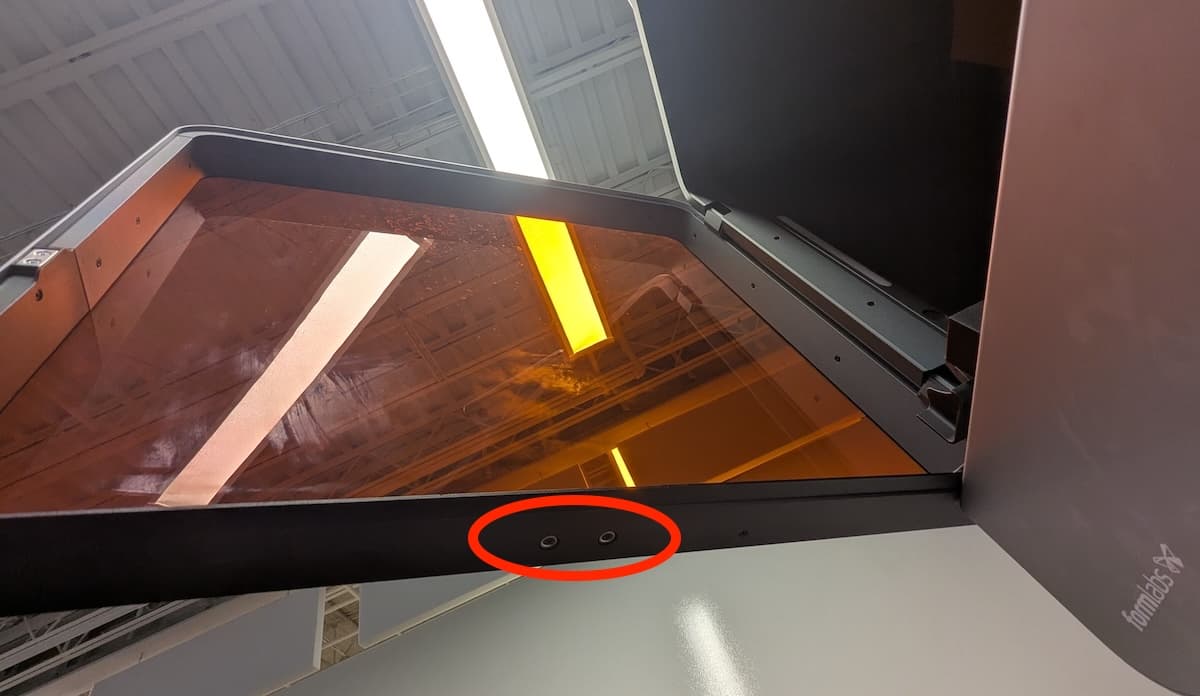
打印机未初始化
如果打印机在开机时没有初始化,请确保机罩已关闭。如果已关闭,请打开机罩,检查位于机罩底部边缘的两个圆形互锁磁铁。如果其中一块磁铁从机罩上脱落,则可能吸附在打印机外壳上或卡在其中一个树脂槽锁销下方。用强力粘合剂将磁铁粘在机罩上。粘合剂干透后,关闭机罩继续。
如果问题持续存在,请联系 Formlabs Support 或您的授权经销商以获取帮助。如果两个磁铁都存在,请重新启动打印机,更新固件,然后重试。
其他杂项和内部错误
在极少数情况下,打印机可能会显示 Internal error(内部错误)并附有相关错误代码。如果显示内部错误,请上传打印机的诊断日志并联系 Formlabs Support 以获得具体指导。
错误 1.23.3
错误 1.23.3表示打印机遇到内部通信错误。解决问题:
错误 1.196.3
错误 1.196.3 可能是由于打印机的可用存储空间不足。从 Queue(队列)中删除旧的打印任务,然后重试打印。
错误 1.225.1
错误 1.225.1表示打印机在连接到所选 Wi-Fi 网络时遇到错误。请重新启动打印机和 Wi-Fi 路由器(如可能),然后再试一次。
错误 1.226.5:打印机在打印时重置
错误 1.226.5表示打印机在打印过程中重新启动,这很可能是由于电源问题。如果在打印任务期间打印机电源中断,打印机重启时不会继续执行打印任务。解决问题:
错误 1.240.5
错误 1.240.5 表示打印机收到损坏的打印任务。这可能在您将打印任务发送至打印机时网络连接出现问题所致。请重新上传打印任务。如果问题再次出现,请通过 USB 等更稳定的连接方式重新上传。
启用 Remote Assistance(远程协助)以排查故障
在故障排查过程中,Formlabs Support 可能需要您提供更多信息或访问您的打印机。可能会要求您在机器上启用 Remote Assistance(远程协助)。
准备打印机以获得远程协助:
启用分析功能以进行故障排查
在故障排查过程中,Formlabs Support 可能需要您提供更多信息或访问您的打印机。可能会要求您在机器上启用 Analytics(分析)。
准备打印机以进行 Dashboard 日志记录:
恢复出厂设置说明
在某些情况下,恢复出厂设置可能会纠正打印机的异常行为。异常行为可能包括未知错误信息、固件更新不完整、触摸屏未响应或 PreForm 连接故障。恢复出厂设置会删除自定义设置,包括保存在 Queue(队列)中的打印件和网络连接。
注意:
恢复出厂设置会删除所有打印任务信息、自定义设置和诊断日志。在恢复出厂设置之前,请上传诊断日志。
若要执行恢复出厂设置:
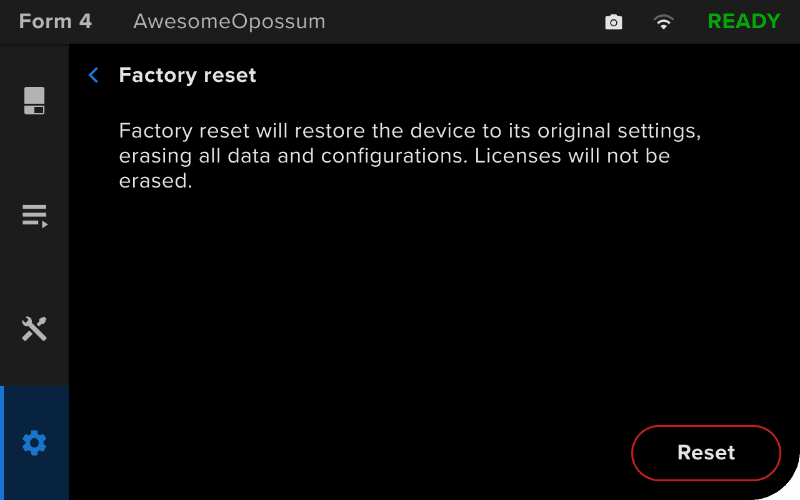
如果无法使用触摸屏执行恢复出厂设置,请使用机器背面的物理按钮:
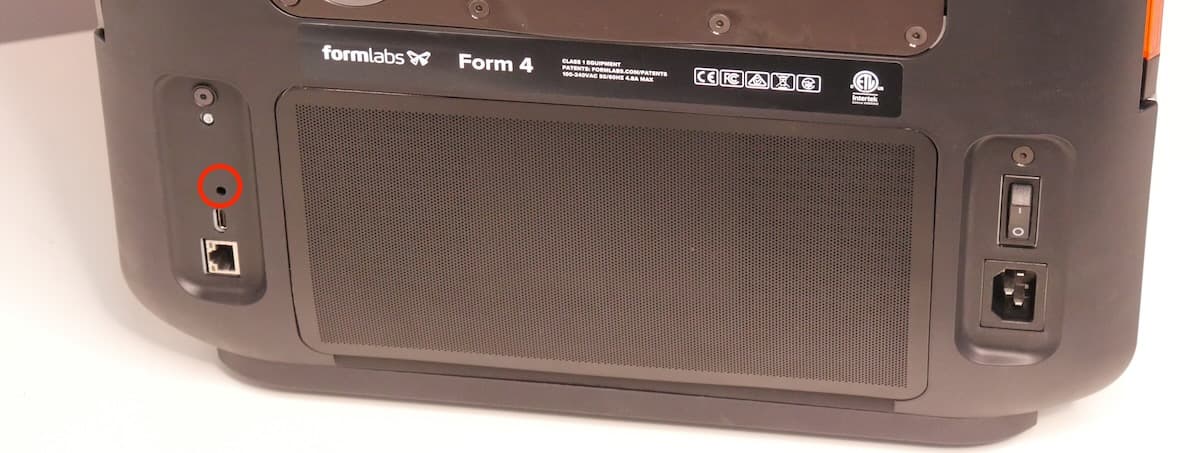
如需确认是否已成功完成恢复出厂设置,请在打印机触摸屏上点击 Queue(队列)。重置成功后,打印队列为空。如果重置未能解决问题,请联系 Formlabs Support 或您的授权经销商。